
I’ve nicked it, propelled food crumbs on it, and stared at it endlessly everyday for the past three-months. With all-new Macs on the horizon, is the landmark 2020 M1 MacBook Air still worth buying now?
Apple debuted much-anticipated updates to the MacBook Air, alongside the 13-inch MacBook Pro and Mac Mini in November 2020. While looking identical to their predecessors, all Macs are powered by a new ARM-based processor designed by Apple – the M1 chip.
The promise of M1 is to vertically integrate Apple’s computer line-ups with an in-house processor that has powered iPhone’s and iPad’s for more than a decade. By being based on the ARM architecture, it theoretically promises better performance and longer battery life without producing much heat – akin to mobile devices.
The 2020 M1 MacBook Air is available in two model tiers, three colours (Gold, Silver, and Space Grey), and optional upgrades including up to 16GB of unified RAM and 2TB SSD storage if bought directly from Apple.
The Air starts from AUD$1499 for an eight-core CPU and seven-core GPU model with 8GB RAM and a 256GB SSD, while one step above for $1849 nets an eight-core CPU with a 512GB SSD. Apple offers education pricing for eligible university students and teachers, costing $1349 and $1699 respectively, which represents a $150 discount. During major university breaks (from June or February depending on where you live), Apple further offers free AirPods wireless earbuds or the AirPods Pro for an extra cost difference.
The Internet has raved for Apple’s landmark M1 processor. Is the hype still justified and worth buying now – amid an all-new 14-inch MacBook Pro later this year and overhauled high-end MacBook Air in 2022?
I review Apple’s most affordable laptop, more than three-months on my ownership. My spec is the top eight-core GPU model, with optional 16GB RAM added in Silver, totalling $2149 ($1969 EDU pricing).
EDITOR’S NOTE: The review device was purchased outright with the editor’s own money and has been used as a primary computer since February 2021.
Design & Display
Coming from a (broken) 2017 MacBook Pro, the new M1 Air instantly feels familiar. It features Apple’s signature industrial design using aluminium across the keyboard deck and clamshell that’s modern, premium, but not OTT.
The traditional silver colourway harps back to past MacBook’s, but it noticeably gleams depending on the light; sometimes it even looks grey. Likewise, the non-illuminated Apple logo. The laptop’s wedge-shaped sides is another distinctive design element of the MacBook Air, but I find myself needing to re-orient and hold the thickest side so it’s stable in the hand while walking. It measures in at 161mm at its thickest point and 41mm at the front. At 1.29 kilograms, it isn’t too light, nor too heavy.
Its design dates back to the 2018 Air and even the defunct 2015 MacBook. As a result, it is conservative, yet contemporary at the same time with that no-thrills feeling. It’s identifiably an Apple Mac at first glance.
During my ownership, I have chipped a piece of aluminium off the side (right image above) after clumsily banging it on a glass panel on the side of a building while grabbing it out of a laptop sleeve. Luckily, nothing else failed.
It’s a sad scar, but it reinforces the solidity of the Air’s chassis and build quality.
Additionally, it features a familiar 13.3-inch Retina display (2560×1600 resolution at 227 pixels per inch) that can crank up to 400 nits of brightness, and supports P3 wide colour and True Tone to adapt the screen temperature to the ambient environment.
At 2.5K, the Air’s LED screen is just right for reading text and viewing videos and photos with good colour accuracy and contrast. While its aspect ratio is 16:10, I found content fit quite well on one screen, though some black letterboxing still exists for 16:9 and 21:9 videos.
As for its brightness, it is enough for indoor spaces and the occasional outdoor use, though its glossy glass panel can be reflective for the latter. The more expensive MacBook Pro offers a 100 nit brighter peak screen, but there isn’t a noticeable difference.
Sure, it isn’t OLED, 4K, nor a touchscreen, but that often sacrifices battery life for too many pixels on a small screen with an operating system that is designed to be mouse-first. Apple’s middle-ground approach is still the best in the laptop market. Again, it’s no-thrills but it works.
Keyboard & I/O
The 2020 M1 Air finally includes Apple’s Magic Keyboard. It’s a sigh of relief from the infamous Buttery Keyboard that was plagued with widespread reliability issues where it was too vulnerable to slight dirt and particles, not to mention uncomfortably flat keys.
No longer do I need to avoid eating like a pig and typing on wood with the Magic Keyboard.
The keys are problem-free and feels more springier and tactile. It’s overall a more pleasant and comfortable experience, especially for those long essays or stories, though there still isn’t as much key travel as Microsoft’s Surface models. The Air’s keyboard is identical to the MacBook Pro, iMacs, and iPad Air/Pro Magic Keyboard accessory.
What is different, however, with its more expensive MacBook Pro sibling, is the lack of a Touch Bar. So, you don’t get a touchscreen strip with buttons that adapt to each app; instead, there’s a normal row of physical function keys with a quick Touch ID fingerprint scanner for authentication.
For 2020, Apple has re-adjusted the Air’s keyboard to feature quick toggles for Spotlight, dictation/Siri, and do not disturb. I find the latter particularly useful to immediately silence anything during a meeting or class. Conveniently, the ‘fn’ key now doubles to trigger the emoji picker and switch between languages.
Do I miss the Touch Bar? No. Changing brightness and volume is much easier with a single press (instead of gliding or swiping on glass), and shortcut toggles in apps like Adobe Photoshop and the QuickTime video scrubber can be accessed on the screen (the “old way”) anyway. Surprisingly, I only miss the quick access to emoji’s on the Touch Bar, but it’s somewhat offset with the new emoji ‘fn’ key.
The glass trackpad is still best-in-class. Despite the MacBook Air including a smaller touchpad than the Pro, it is easy-to-use and smooth to use with macOS’ multi-finger software gestures. I found the size just right to click, drag, and glide without any accidental presses.
As with all Apple laptops, it features Force Touch. The trackpad doesn’t physically click; instead, it uses its haptic feedback motor trickery to simulate the feeling of a click, resulting in quieter presses, even presses whether at the top or bottom (unlike a traditional diving board design), and is one less part to worry about for reliability’s sake. It also reacts differently depending on how hard you’ve pressed it, but it’s more of a gimmick.
However, the M1 Air’s ports are more disappointing. Catalysed by the now-axed 12-inch MacBook in 2015, minimalism is Apple’s mantra. The 2020 MacBook Air carries the same design and chassis as it did in 2018, so there’s two USB-C slots on the left and one 3.5mm headphone jack on the right. That’s it. Both USB-C’s use the latest USB4 standard, so you’ll be able to plug Thunderbolt 3 accessories like display monitors, and get up to 40Gbps transfer speeds. That’s not a tangible upgrade over previous models per say.
If you want to plug in any USB-A peripheral or connect a HDMI projector, you’ll need to purchase requisite adapters separately. That’s not ideal, but I’ve become accustomed to this reality as a previous 2017 MacBook Pro owner that only had four USB-C ports. The dongle is just another thing to pack in the back, but find a good all-in-one adapter (not Apple’s own flimsy ones) online for around $20 to $100.
Compared to the Pro, the Air’s two USB-C slots are noticeably set further to the edge due to its wedge-shaped design, which might make it easier to plug in things. Though, I wish there was one USB-C on each side – instead of just being on the left – as it can be a nuisance when trying to plug in the charger or dongle from the right side (because there’s no desk space on the left to do so).
While Apple’s most affordable laptop has an excellent, worry-free keyboard and touchpad, the minimal ports are a slight inconvenient let down.
Other notes include the same grainy 720p webcam and three-microphone array with directional beamforming. While camera quality still isn’t great for video call meetings on Zoom, Teams and the alike, the M1 chip brings a new image signal processor (ISP) that improves exposure and colour. It’s a welcome, albeit minor change.
There’s also stereo speakers with Dolby Atmos support that provide good clarity to vocals, a wide soundscape, and decent bass. I’m not an audiophile, though. While Apple touts the MacBook Pro does have better speakers, I didn’t really notice it and I’m perfectly satisfied with the Air.
Performance
The M1 Apple silicon has been lauded by the Internet, so how does it perform in reality for a typical full-time university student?
My device features an eight-core M1 CPU (central processing unit) and eight-core GPU (graphics processing unit), optioned up with 16GB of unified RAM. Unified memory simply means the RAM is now embedded within the chip itself, so there’s less “travel” time for processes, is faster, and can store more applications at once.
It performs almost flawlessly. While I won’t dwell on synthetic benchmarks here, it does every job I throw at it without fuss. Compared to my Intel-based 2017 MacBook Pro – a near top-spec – the Air is a world’s away. I can now instantly wake and unlock the machine from sleep in seconds, and multi-tasking and animations feel much smoother without jitter or hesitation.
It just works. This includes countless Chrome, Edge, and Safari tabs (yes, I use three web browsers), never-ending Microsoft Word and Excel documents, large PowerPoint presentations, long Zoom meetings, and the odd Final Cut Pro, Photoshop and InDesign project, and Premiere Pro export. I can even run all of those tasks at the same time with 16GB RAM. While it would be an organisational mess, it is doable, even if 8GB unified memory is already enough for most tasks I do thanks to its improved efficiency.
I always advise people to invest the most money in the device they most use or depend on. For me, that’s the laptop. But opting for an eight-core GPU and 16GB unified RAM is a bit overkill, even though there’s more headroom for futureproofing. The base model should suffice most users.
As the M1 silicon is based on ARM (Acorn RISC Machine), programs need to be optimised for the new architecture so they perform the best. Most apps already have at the time of publication, including all of Apple’s, the Microsoft Office suite (except Teams), Zoom, Slack, EndNote, Photoshop, Lightroom, and more.
Since the iPhone and iPad are also ARM-based, you can download select mobile apps, but they’re relatively limited. I’ve only got the NextThere, Twitter, and RACQ Fair Fuel installed. They are handy to have and the Cupertino tech giant has done a good job in simulating using a touchscreen app with a trackpad, but it’s non-essential.
Thankfully, software not optimised can still be normally run as an x86 Intel app under Apple’s Rosetta 2. Essentially, it tries to emulate it so it can run on ARM. Although you won’t get the best performance nor battery efficiency, it isn’t a let down and runs as if it was on a slightly older, slower machine. I found light apps like Facebook Messenger, Microsoft Teams, and Spotify run just fine.
But, the Adobe Premiere Pro video editing app can get bogged down on Rosetta 2; I had to cut playback to ½ or even ¼ quality unrendered to get a smooth timeline playback. Over time, more developers will update their apps to support ARM.
Crucially, the best part of the M1 Air is it’s fanless. It’s silent. Much like smartphones and tablets, ARM is high power yet efficient, emanating very little heat. As a result, the Air doesn’t need a fan to cool it down, albeit with some performance compromises for longer intensive loads like exporting a long video edit or batches of images. That isn’t necessary for my usual workload, so it wouldn’t be worth it stepping up for the Pro that includes a single fan.
Compared to days past, the M1 MacBook Air no longer burns my knees and cries its fans just because I’m opening a few website tabs and streaming video. It’s a complete contrast.
Like much of this review, Apple’s most affordable laptop just works for most tasks – thanks to the momentus move to the M1 ARM-based processor.
Software
As at the time of publication, my device runs out-of-the-box with macOS Big Sur. Apple’s 11th computer operating system has had a complete design overhaul with new app icons, general menu interfaces, widgets, Control Centre and more, not to mention the transition to ARM.
It is a bit more bubblier, brighter, and rounded akin to iOS and iPadOS. As a continuing Mac user, it is a welcome change with the same basic elements and touchpad gestures remaining the same.
If you’re a staunch Windows user, macOS will feel a little different. You’ll need some time to adapt to things like different ‘window’ arrangements and multi-tasking, but it’s a far cry from Windows 10’s inconsistent interface, hard-to-find settings, and obscure buttons. It’s eerily familiar with the forthcoming Windows 11, though.
The tech giant’s macOS also works well with your other Apple devices in the ‘walled garden’, including iPhone, iPad, Apple Watch, and AirPods with support for Handoff, AirDrop, iMessage, automatic AirPods switching, and more. That ecosystem push is set to further expand with the release of macOS Monterey later this year, with the Mac becoming more of a productivity and entertainment hub with features like AirPlay screen mirroring and Universal Control.
As the 2020 M1 Air is the first to use the new architecture, it should receive software support for years to come that keeps it fresh every year. There’s no need to worry about longevity.
Battery life
Thanks to the M1, the 2020 MacBook Air has impressive battery life; however, it isn’t as long as when I got it new anymore. Combined with Apple’s macOS operating system, it is highly efficient and well-optimised.
It’s another stark contrast from my high-end Intel-powered 2017 MacBook Pro. Battery life is an excellent highlight for the Air. It houses a 49.9-watt-hour lithium-polymer battery and can fast-charge with the included 30-watt USB-C power adapter.
When it was new, a 10am to 5pm day of classes, word processing, and YouTube streaming left it at around 40 to 50 per cent remaining. However, that is no longer the case three-months later. The same full-day workload will leave me with around 30 to 40 per cent today.
While lithium batteries will naturally lose its capacity over time, I didn’t expect to have four per cent shaved off my battery health (according to the settings menu) with only 37 charge cycles so soon.
I blame a poor algorithm for macOS’ optimised battery charging feature. It should theoretically stop charging past 80 per cent to alleviate stress on the battery cells, but I’ve only seen it a handful of times in action – and only at night.
As I spend most of my time at home, the Air is always plugged into a power source. I’ve frequently seen the state-of-charge dip to around the 90 per cent mark (actual) at night after using it the entire day, which is normal as a part of the software discharging a bit to prevent degradation. Concerningly, when I plug in and use it, it immediately charges to 100 per cent; it should stop charging and only rely on the power cord instead. That is my only explanation for my faster-than-expected deteriorating battery health.
The Cupertino giant should optimise its algorithms, let users input a schedule, or let us manually stop charging past 80 per cent – because it’s lethal for our devices and irreversible. This control is already available in some other Windows laptops like Dell and Samsung.
I’ve learned from this, so try to not always keep your tech gadgets plugged-in and charging. Other than this major gripe, the Air’s battery life is still commendable and a significant improvement over my old 2017 Pro. If you want even longer battery longevity, the M1 2020 MacBook Pro features a larger 58.2-watt-hour battery with a faster 61-watt charger.

Would I pick the M1 MacBook Air (again)?
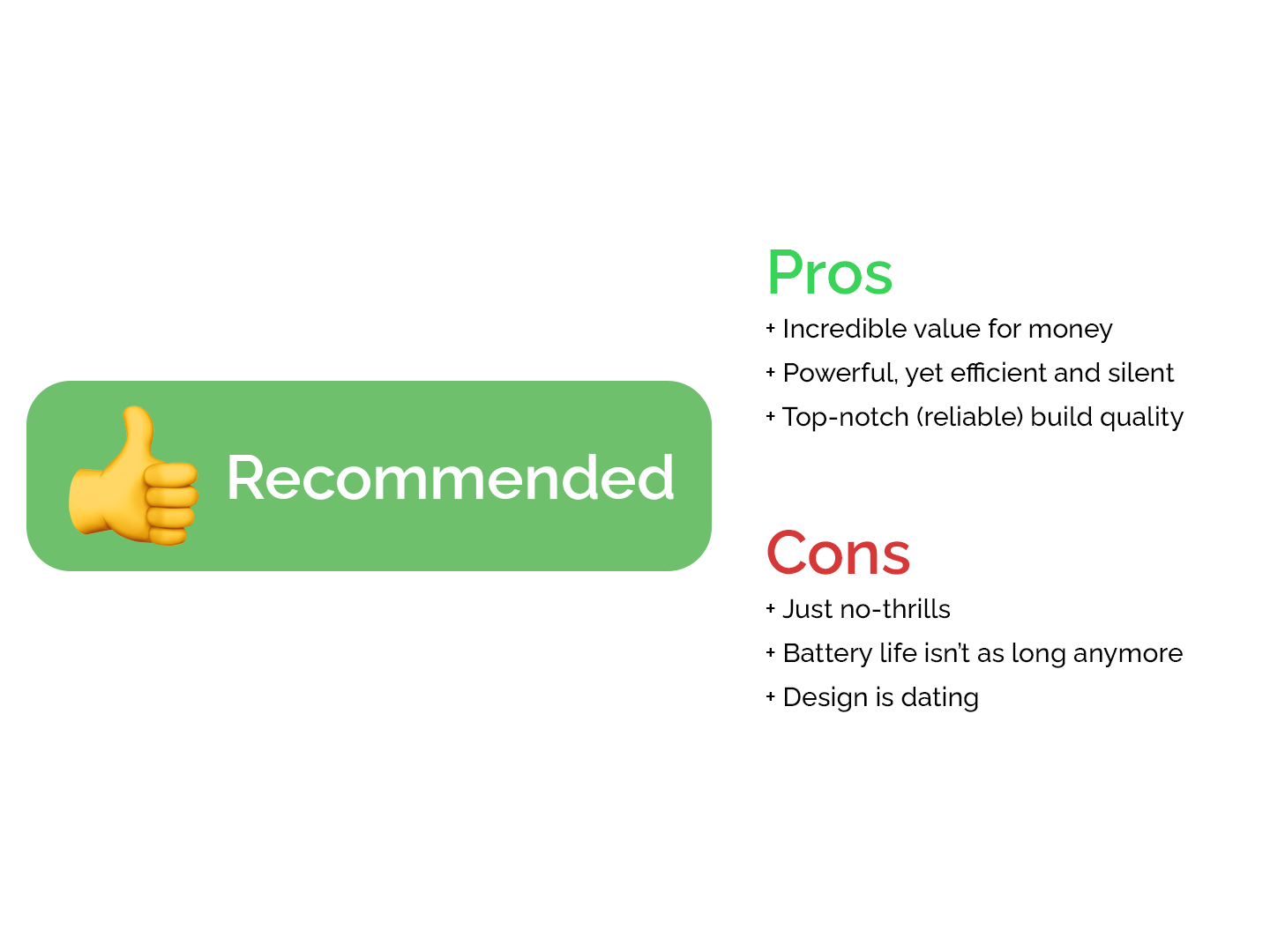
The 2020 M1 MacBook Air is an impressive laptop that checks nearly every criteria off for finding the perfect laptop for most users – premium build quality, solid keyboard and trackpad, capable processor, and long battery life. It does almost everything without fuss. If you own an Intel Mac or PC, it is a marked upgrade.
However, with the same conservative – but still contemporary – design harping back to 2015, it’s just no-thrills. The silver lining is, Apple can now produce a laptop that is more reliable than ever by learning from its past misgivings (bye, bye Butterfly Keyboard).
The M1 chip and Magic Keyboard has transformed the MacBook Air to suit anyone from students, to work professionals, and simple home users who just need an all-round good laptop.
With rumblings of an all-new, more powerful 14-inch MacBook Pro and a more expensive, redesigned MacBook Air in 2022, should you wait? Remember that they’re both going to cost much more than this current 2020 M1 Air – upwards of $2000 to $3000.
If you really need more power, like regularly using Premiere Pro, AutoCad and other graphically-intensive creative apps, then you should wait. For the rest, pick the M1 MacBook Air. It has become so ‘pro’ that the larger battery, added cooling fan, better speakers and microphone, slightly brighter screen, and impractical Touch Bar in the M1 MacBook Pro isn’t worth it anymore for its extra $300 impost.
Other Windows rivals like the AMD-powered Microsoft Surface Laptop 4, Dell XPS 13, HP Envy 13, LG Gram, among others can be considered – but they still can’t match the MacBook Air’s value for money.
You may also be cross-shopping with an iPad Air or Pro. Unless you need the extra versatility and stylus, a tablet is always pared-back, less capable than a fully-fledged laptop for about the same – if not more – money when accessorised up. Choose the 2020 M1 MacBook Air.
But, I wouldn’t pick my Air’s spec again. Instead, I recommend sticking to the base eight-core CPU, seven-core GPU configuration with 8GB unified RAM and 256GB SSD as standard (or upgrade to 512GB storage if need be). This represents the best value laptop in the market – an unambiguous bargain – at only $1499 ($1349 EDU).
If you thought the ‘Apple tax’ was expensive, think again (at least with this model). It’s unbelievable.

 The Connected by Henry Man